How to edit the waist and hips in a photo
Use the Waist and Hips sliders in Expression Editor - Reshot AI to adjust the outline of a body in a photo, with handles to place each area exactly.
In Expression Editor - Reshot AI, open Face Studio, choose Body Reshape, then Waist (wider or slimmer) or Hips (narrower or curvier). Drag the side handles so the area sits on the body, move the slider a little and compare before you save.
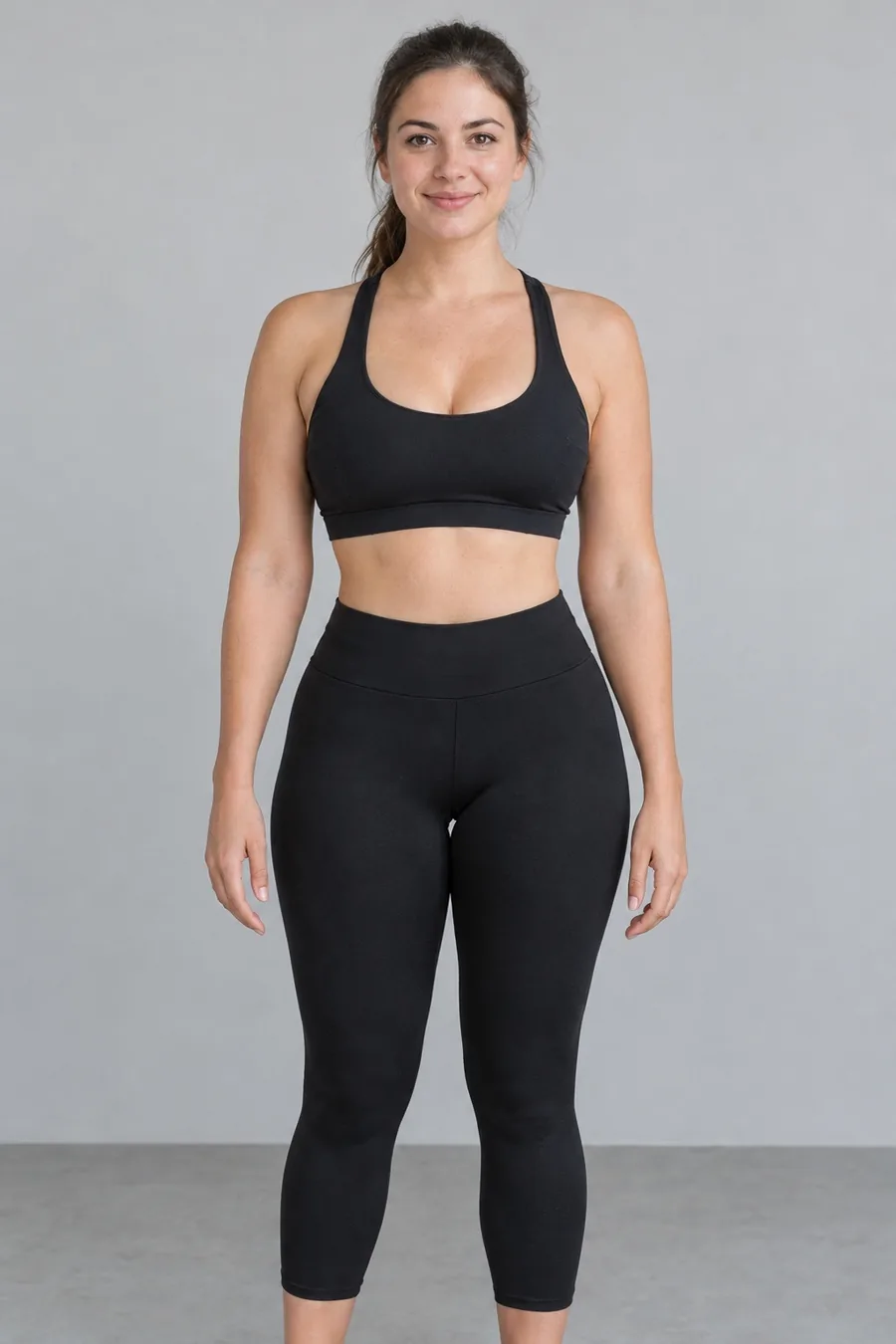
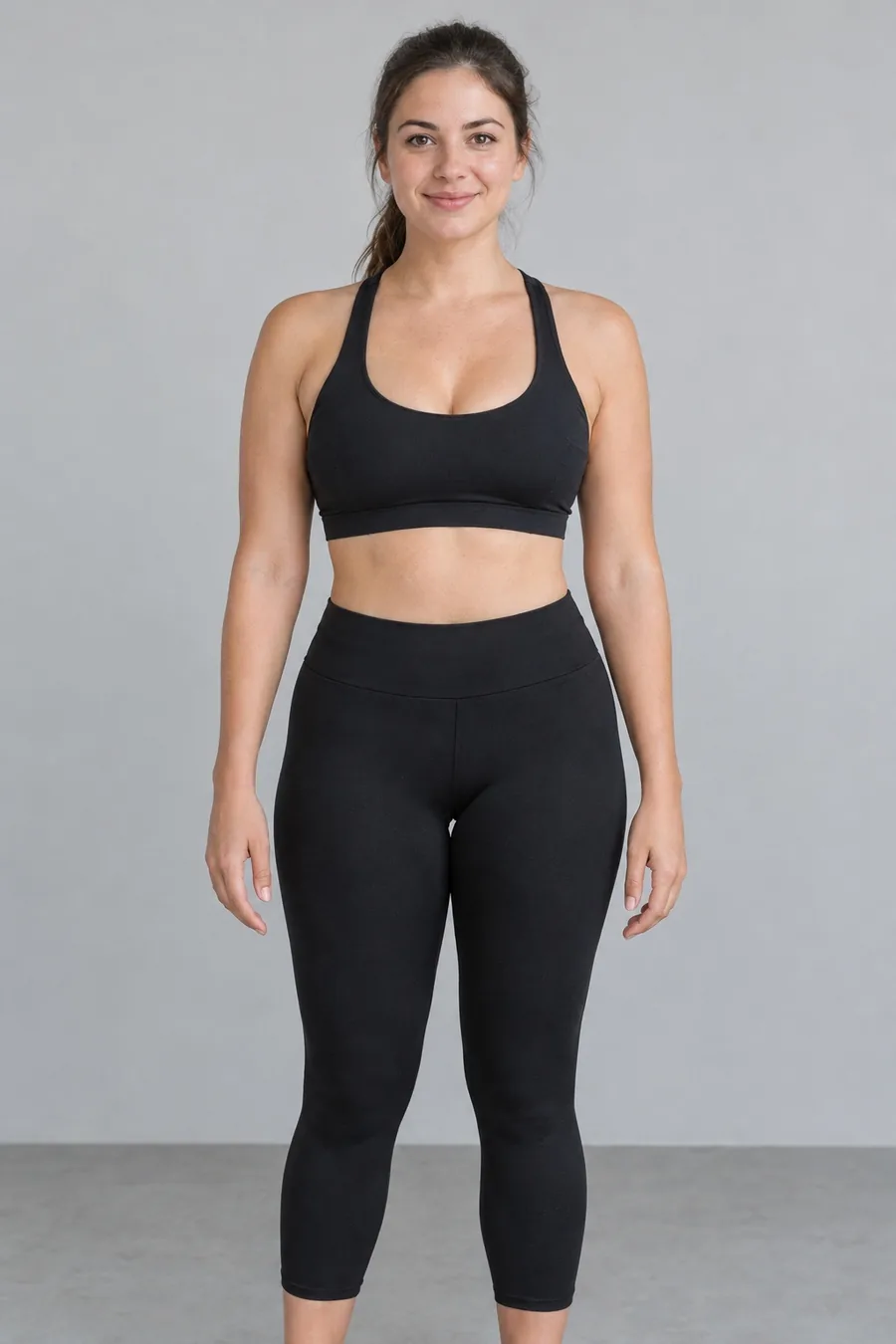
Two sliders, two directions
The Waist slider runs from Wider to Slimmer, and the Hips slider from Narrower to Curvier. Both start in the middle, so you can go either way. That matters in practice: a photo taken at an angle can make a waist look narrower than it is just as easily as wider.
Place the area before you slide
Both tools show the area they will change, with handles on the left and right. The app places it from the body's pose, but clothing can mislead the eye: a high-waisted skirt, a belt or a loose shirt can sit far from the real waist. Drag the handles until they sit on the body, then slide. A waist area set too low will pull the hips; a hips area set too high will pull the waist.
Waist or hips first?
Start with the area that bothers you most and leave the other alone if you can. Changing both together changes the whole silhouette, and the result is easier to notice. If you do use both, change one, compare, then change the other.
Things that give an edit away
- A bent door frame, wall edge or railing right next to the waist.
- Stripes or a check pattern on clothing that suddenly curves.
- An arm resting on the hip that changes shape with it. Use the eraser on the arm.
- A gap between arm and body that grows or closes.
Step by step
Open the photo in Face Studio
Pick a photo where the waist and hips are visible.
Choose Body Reshape, then Waist or Hips
In a group photo, tap the person first.
Drag the side handles
Set them on the body, not on the clothes.
Move the slider
Waist: Wider to Slimmer. Hips: Narrower to Curvier. Small steps.
Compare and erase
Check straight lines and patterns next to the body, erase where needed, then save.
Try it on your own photo
Download Expression Editor - Reshot AI on the App Store.
Questions
Can I make the waist wider?
Yes. Move the Waist slider toward Wider. The slider goes both ways.
Does the Hips slider only make hips bigger?
No. It goes from Narrower to Curvier, so you can make the hip line narrower too.
Will it change the clothes?
Clothes move with the body in the area you set. Patterns on the fabric bend with it, so check stripes and checks.